
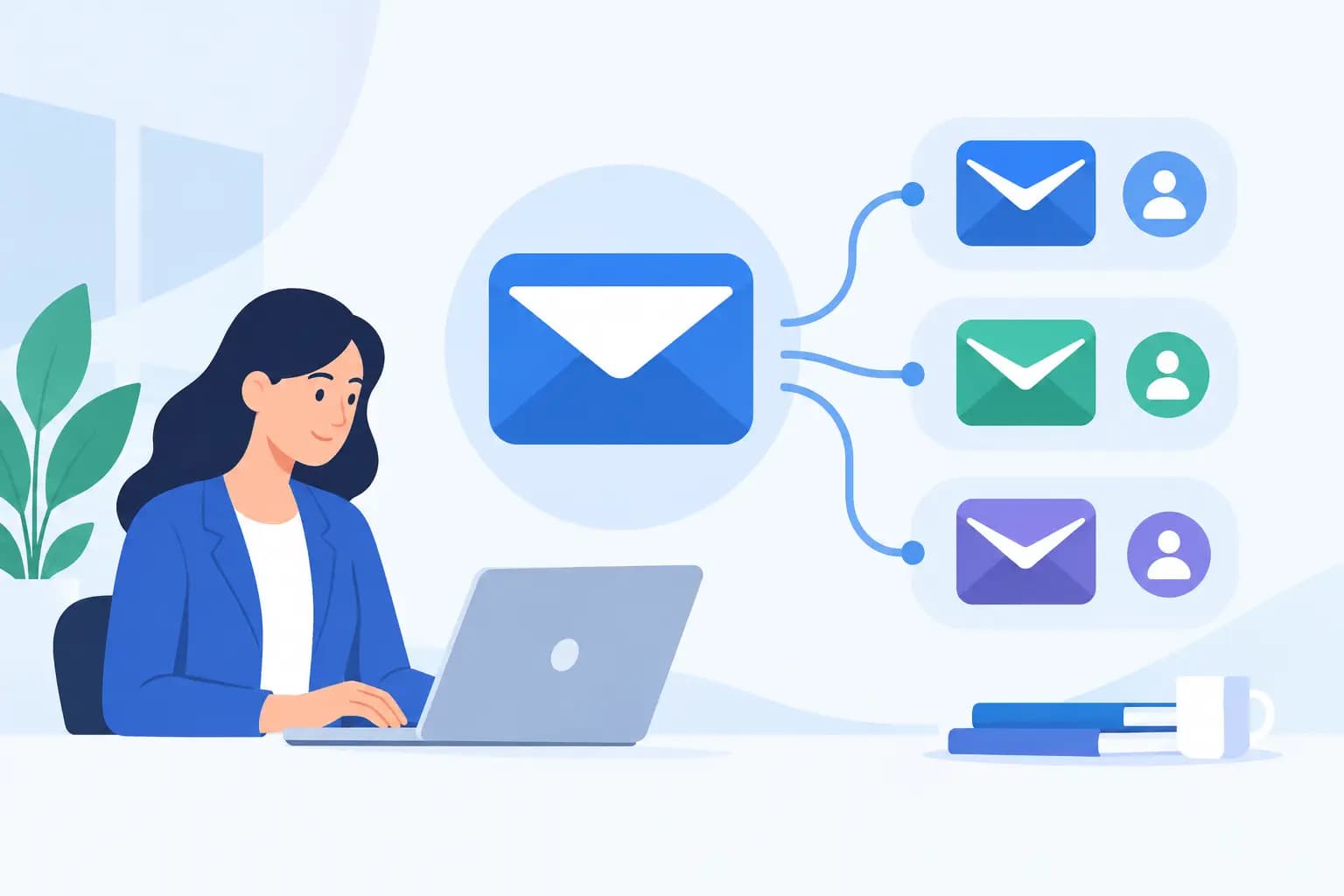
A customer emailing sales@yourdomain.com should not need to know that one person handles sales, billing, and support behind the scenes. Learning how to create email aliases gives your business a cleaner public presence while keeping messages routed to the right inbox.
For a new business, aliases are one of the simplest ways to look established without creating and managing a separate mailbox for every job function. They can also reduce missed inquiries, make team handoffs easier, and help you keep personal and business communications separate.
What an email alias does
An email alias is an additional email address that delivers mail to an existing mailbox. For example, if your primary mailbox is jordan@yourdomain.com, you might create hello@yourdomain.com, info@yourdomain.com, or support@yourdomain.com as aliases. Messages sent to those addresses arrive in Jordan’s regular inbox.
An alias does not usually have its own inbox, password, storage allowance, or login. It is a delivery address, not a full mailbox. That distinction matters when choosing the right setup for your business.
A dedicated mailbox is better when another employee needs private access to email, such as accounting@yourdomain.com for a bookkeeper. A forwarder can also send mail to another address, including an outside personal email address, but that approach can be less organized and may complicate sending replies from your business domain. An alias is often the cleanest option when one person or team needs to receive messages sent to several public-facing addresses.
Why small businesses use email aliases
Aliases make it easier to organize communication around customer needs rather than staff names. A visitor can write to orders@, returns@, or events@ without needing to find the right individual on your website. If responsibilities change later, you can update where the alias delivers without changing the address customers already know.
They also support a more professional brand. An address on your own domain reinforces that your business has a real online home, whether you are running a local service company, launching an online store, or building a freelance practice. It looks more consistent on invoices, contact forms, social profiles, and business cards than using a personal email account.
There is a practical privacy benefit as well. You can reserve one address for vendor quotes, newsletter signups, website forms, or public listings. When an address begins receiving unwanted mail, you can identify where it was used and adjust your process without exposing your main address everywhere.
How to create email aliases in your hosting account
The exact labels vary by email provider, but the setup follows the same basic path. If your business email is managed through a hosting control panel such as cPanel, start by signing in to the account that manages your domain and email service.
1. Choose the addresses your customers actually need
Start with a small, useful set. Most businesses do not need a long list of aliases on day one. Common choices include hello@, info@, support@, sales@, billing@, and contact@ followed by your domain name.
Choose names that are easy to say, spell, and remember. If your website says “Contact Us,” then contact@yourdomain.com is a natural match. If shoppers need order help, support@yourdomain.com may be clearer than an employee’s name.
Avoid creating several addresses that mean nearly the same thing, such as hello@, contact@, inquiries@, and questions@, unless you have a clear plan for each one. Too many public options can confuse customers and create more inbox rules to manage.
2. Confirm the destination mailbox
Before adding an alias, decide who should receive the messages. It may be your primary business mailbox, a shared team mailbox, or a mailbox assigned to a specific department.
Use an active, monitored destination. An alias only helps when someone is checking the inbox and responding promptly. If two people need access, a shared mailbox or team-based email setup may be better than routing every message to one employee and forwarding it manually.
3. Add the alias or forwarder in your email settings
In many hosting dashboards, email aliases are created through an option labeled Email Aliases, Forwarders, Routing, or Additional Addresses. Select your domain, enter the alias name, then choose the mailbox that should receive incoming messages.
For example, you could set support@yourdomain.com to deliver to owner@yourdomain.com. Save the change, then repeat the process only for the addresses you need.
Some platforms call this a forwarder instead of an alias. That can be perfectly suitable, but check whether the system lets you reply from the public address. If a customer writes to support@ and your reply arrives from owner@, the conversation can look inconsistent. Where possible, configure your mail application to send from the alias or use a mailbox that supports multiple sending identities.
4. Test receiving and sending before publishing it
Send a test email from an address outside your domain, such as a personal account. Confirm that it arrives in the intended inbox, does not land in spam, and displays the alias correctly.
Then send a reply. Check the From address shown to the recipient. If you want customers to see sales@yourdomain.com, make sure your email app is configured to use that address when replying. This small test prevents a common problem: a professional public address that quietly replies from a personal or unrelated inbox.
5. Add the alias where customers expect it
Once tested, add the address to the right places. A general contact alias belongs on your contact page and email signature. A support alias may belong in order confirmation emails and help documentation. A billing alias can appear on invoices and vendor records.
Keep the purpose clear. If customers use an address for one task but receive replies from another department, they may lose confidence or send duplicate messages. Consistent labeling helps your operation feel organized even when a small team is doing the work.
Set up aliases without creating inbox chaos
Aliases are simple to create, but they still need a basic workflow. Create inbox folders or filters for high-volume addresses such as orders@ or support@. This lets you separate customer requests from routine vendor messages without checking multiple mailboxes all day.
Set clear ownership, too. If messages to sales@ go to three people, decide who answers first and how leads are tracked. If the address belongs to one person, create a backup plan for vacations or busy periods. An alias should make responsibilities clearer, not create the assumption that someone else will respond.
For public-facing addresses, use a professional signature that includes your business name, website, and a direct way to continue the conversation. Keep automatic replies limited to situations where they provide real value, such as confirming that a support request was received. Generic auto-responses to every message can feel impersonal.
Important limits and security considerations
Do not treat an alias as a separate security boundary. Anyone with access to the destination mailbox can read messages sent to every alias attached to it. If financial, HR, or sensitive client communications need restricted access, create a dedicated mailbox with the appropriate permissions instead.
Be cautious with catch-all email settings. A catch-all sends mail addressed to any misspelled or nonexistent address at your domain into one inbox. It may sound convenient, but it can attract more spam and make legitimate messages harder to find. Creating intentional aliases for the addresses you publish is usually the better choice.
You should also avoid using aliases to send bulk promotional email from a standard business mailbox. Marketing campaigns need proper consent, sending practices, and an unsubscribe process. Keep day-to-day business email focused on conversations customers expect to receive.
Finally, remove aliases that are no longer used. An old employee-name alias or discontinued service address can create confusion and expose messages to the wrong person. Review your list periodically, especially after staffing changes, a website redesign, or a new product launch.
When an alias is not the right choice
An alias is ideal when one inbox needs several recognizable entry points. It is not the best fit when multiple people need their own logins, separate storage, or private message access. In that case, create individual mailboxes or use a shared team inbox designed for collaboration.
It also may not be enough for a growing support operation. When message volume increases, assigning tickets, tracking response times, and viewing customer history may require help desk software rather than a collection of aliases and folders. Start simple, but choose tools that can grow with the business.
A well-planned business email setup does not need to be complicated. Start with the few addresses customers will recognize, route them to people who can respond, and test every path before publishing it. With reliable business email hosting from a provider such as GiddyHost, those small details can help your business look ready for its next customer.