
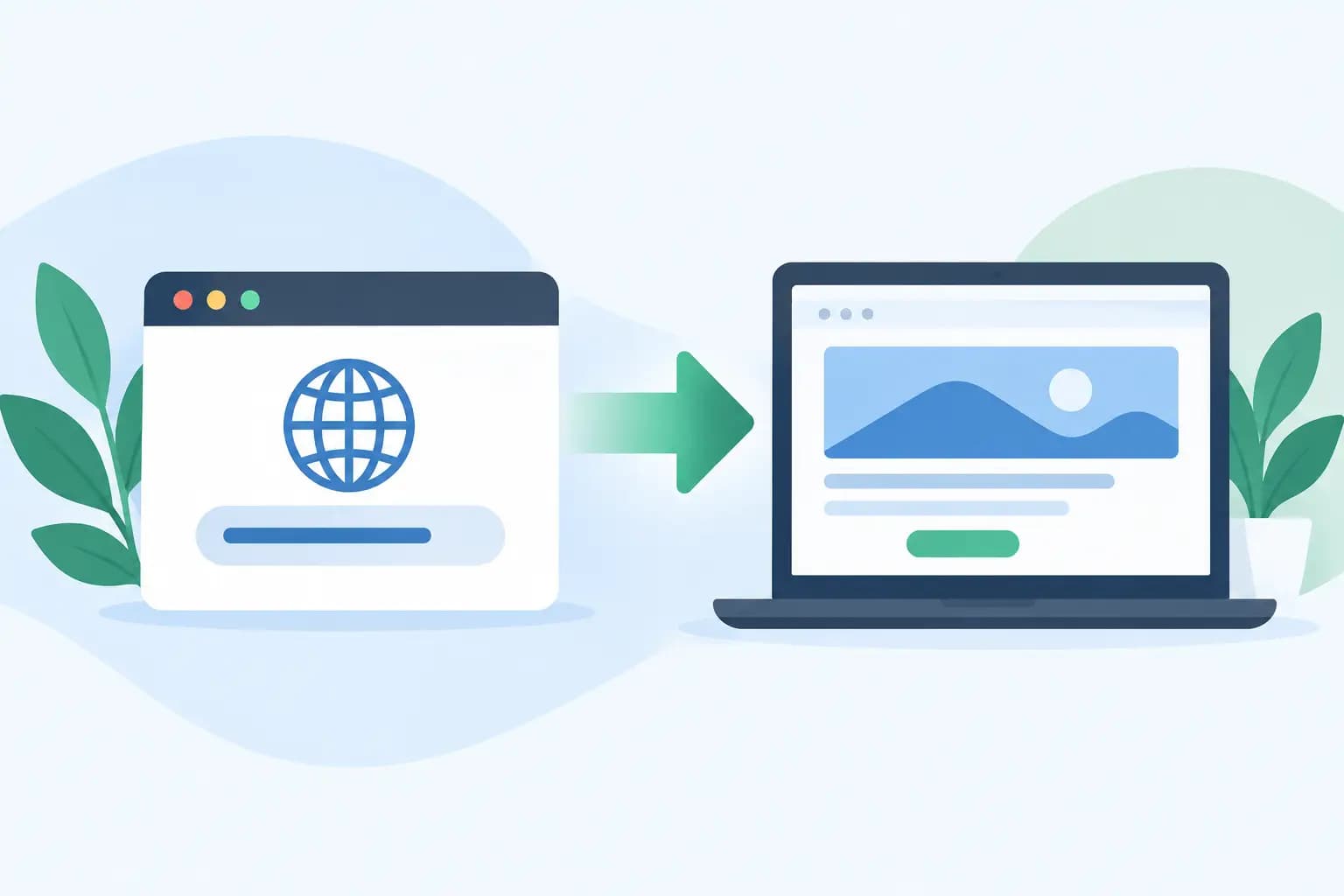

A customer types your old web address, a shortened version of your brand name, or a domain with a common misspelling. They should still reach the right place. When you set up domain forwarding correctly, those visits move to your current website automatically instead of landing on an error page or, worse, a competitor’s site.
For a small business, domain forwarding is a simple way to protect your brand, support a website change, and make marketing easier. The technical setting takes only a few minutes in most domain dashboards. Choosing the right type of forward, however, affects search visibility, visitor trust, and whether specific pages continue to work.
What domain forwarding does
Domain forwarding, also called URL forwarding or domain redirecting, sends someone who enters one domain to another web address. For example, a business might forward yourcompany.net to yourcompany.com, or direct yourcompany.com/sale to a specific promotion page.
The visitor enters the forwarding domain, then their browser is redirected to the destination URL. A properly configured redirect is visible in the browser address bar, which is usually what you want. It makes clear where the visitor has arrived and lets the destination website function normally.
Forwarding is especially useful when you own multiple versions of your name, have changed your business domain, or want a short, memorable web address for printed materials. It is not the same as building a second website. One website remains the destination, while the extra domain simply directs traffic there.
When to set up domain forwarding
The best reason to set up domain forwarding is to reduce friction for real people. You may have registered both the .com and .net version of your company name, for instance. Rather than leave one unused, forward it to your primary site so visitors always have a clear path to your business.
It also helps during a rebrand or domain change. If a freelance designer moves from a personal-name domain to a studio brand, forwarding the former address preserves the value of business cards, directory listings, and past client communications. An online store can do the same after moving to a cleaner or more marketable domain.
Campaign domains can be useful, but use them carefully. A short domain can forward to a landing page for an event, a new service, or a seasonal offer. Make sure the message on the destination page matches the campaign that brought people there. Sending every campaign domain to a generic home page can leave potential customers wondering what happened to the offer they expected.
Choose the right redirect type
Before changing any setting, decide whether the redirect is permanent or temporary. This choice is more than a technical label.
Use a 301 redirect for a lasting move
A 301 redirect tells browsers and search engines that the original URL has permanently moved. It is the standard choice when an old domain will no longer host its own website, when you consolidate duplicate domains, or when you replace an old brand address with a new one.
For most businesses, a 301 is the right option for forwarding alternate domain extensions and common name variations to the primary domain. It helps establish one clear public-facing address for your website.
Use a 302 redirect for a short-term change
A 302 redirect indicates that the move is temporary. Use it when you plan to restore the original page or domain soon, such as during a limited promotion, short-term maintenance arrangement, or a test.
Do not use a 302 merely because it sounds safer. If the redirect is intended to stay in place, a 301 provides clearer direction to both visitors and search engines. If you are uncertain, think about where you expect customers to go six months from now.
Avoid masked forwarding in most cases
Some control panels offer masked forwarding, sometimes called URL masking or framed forwarding. It keeps the original domain visible in the browser while displaying content from another address.
That may sound appealing, but it can create problems with sharing links, browser navigation, analytics, page performance, and secure checkout or login experiences. It can also make the destination feel less transparent to visitors. Standard forwarding, where the destination URL appears in the browser, is typically the cleaner and more dependable choice for a business website.
How to set up domain forwarding in your dashboard
The exact labels differ by registrar and hosting provider, but the process follows the same pattern. Your domain must be active and managed in the account where you are making the change.
First, sign in to the domain management dashboard and select the domain you want to forward. Look for an option called Forwarding, Redirect, URL Redirect, or Domain Forwarding. Enter the complete destination address, including https:// when your site uses a secure connection.
Next, select the redirect type. Choose a 301 for a permanent move or a 302 for a temporary one. If the dashboard offers an option to forward only the root domain or both the root domain and www version, select both whenever possible. That way, visitors who type either version arrive at the same destination.
Save the setting, then allow time for the change to take effect. Some forwards work quickly, while DNS-related updates can take longer depending on the provider and current configuration. Avoid repeatedly changing the setting while waiting, since that can make troubleshooting harder.
GiddyHost customers should also confirm that the destination website is active, secure, and ready for visitors before pointing additional domains toward it. A redirect can only improve the path to a website that is already working properly.
Preserve page paths when they matter
A domain-level forward can send every visitor to one destination, such as https://example.com. That is fine when the old domain had no meaningful page structure. But if visitors may use old links to service pages, blog posts, product pages, or contact forms, path forwarding matters.
With path forwarding enabled, a visit to olddomain.com/services can go to newdomain.com/services instead of dropping everyone on the home page. This preserves a more useful experience and reduces the chance that a visitor abandons the site after landing somewhere irrelevant.
Not every provider supports path forwarding at the domain level, and paths only work if comparable pages exist on the destination site. When moving a full website with many URLs, redirects may need to be configured in your hosting control panel, website platform, or server rules instead. That approach provides more control, particularly when old page names and new page names do not match.
Check these details before you publish
Forwarding is straightforward, but a few details prevent common business headaches:
- Confirm the destination uses HTTPS and has a valid SSL certificate. Visitors should not see a security warning after the redirect.
- Test both the non-www and www versions of the forwarding domain in a private browser window. Cached browser results can hide a recent change.
- Test a few important page URLs if you are preserving paths, including contact, services, products, and checkout pages.
- Keep the forwarding domain registered and set renewal reminders. A domain cannot forward after it expires.
- Review business email separately. Website forwarding does not automatically forward email sent to addresses at that domain.
That final point is easy to miss. If you use hello@olddomain.com, changing website forwarding does not guarantee messages will reach hello@newdomain.com. Email routing depends on separate DNS records and mail settings. Plan the email transition before announcing a domain change to customers.
Avoid redirect chains and loops
A redirect chain happens when one address forwards to a second address, which forwards to a third. For example, oldbrand.com redirects to newbrand.com, then newbrand.com redirects to www.newbrand.com. Visitors may still reach the site, but the extra steps add delay and complicate maintenance.
A redirect loop is more serious. It occurs when a domain eventually directs back to itself, leaving the browser unable to load the page. Loops often happen when forwarding settings conflict with rules in WordPress, a website builder, a CDN, or an .htaccess file.
Aim for one direct hop: forwarding domain to final destination. After saving your changes, test the result from a desktop browser and a mobile device. If the browser reports too many redirects, pause and review every place redirects could be configured. Remove overlapping rules rather than adding more rules on top of the problem.
Domain forwarding and your search presence
Domain forwarding is not a shortcut to better rankings. Its value is organization and continuity. A permanent 301 redirect gives search engines a clear signal that an old address has moved, while providing visitors a direct route to the page they need.
Use one primary domain across your website, business email signatures, social profiles, local listings, ads, and printed materials. Forward close variations to that primary address instead of promoting several domains at once. Consistency makes your brand easier to remember and gives customers fewer chances to mistype or question which site is official.
A good forwarding setup should feel invisible to the visitor. They enter a familiar address, arrive at the correct secure page, and can take the next step with confidence. That small bit of online housekeeping can protect hard-earned attention long after a business card, ad, or old link has left your hands.


