A WordPress move can look deceptively simple: copy the files, import the database, update DNS, and go live. But for a small business website, one missed setting can mean a broken contact form, missing orders, email interruptions, or visitors landing on an error page. The good news is that learning to migrate a WordPress site with cPanel is manageable when you move in the right order and leave time to test.
This guide is designed for business owners, creators, and professionals who want a controlled migration without guessing at the technical details. It assumes your old and new hosting accounts use cPanel. If only one account has cPanel, the broad process still applies, but the export and import steps may look different.
Before You Migrate a WordPress Site in cPanel
A successful migration starts before anything is copied. First, confirm that you can log in to the old hosting cPanel, the new hosting cPanel, and the WordPress admin area. You should also know where your domain’s DNS is managed. That might be at your domain registrar, your hosting provider, or a third-party DNS service.
Next, take inventory of what needs to move. Your WordPress files and database are essential, but they may not be the whole story. If your existing hosting account handles business email, note each mailbox, forwarding rule, autoresponder, and email list. These items are often separate from a WordPress migration.
Check the PHP version, WordPress version, and any special server settings used by your site. A current WordPress site generally benefits from a supported PHP version, but changing versions during a move can introduce avoidable variables. If possible, migrate first, verify the site, and then plan upgrades separately.
It is also wise to lower the DNS TTL 24 hours before the change, if your DNS provider allows it. A lower TTL can help the new destination take effect more quickly after you update the records. It does not eliminate propagation entirely, but it can shorten the transition period.
Choose the Right Migration Method
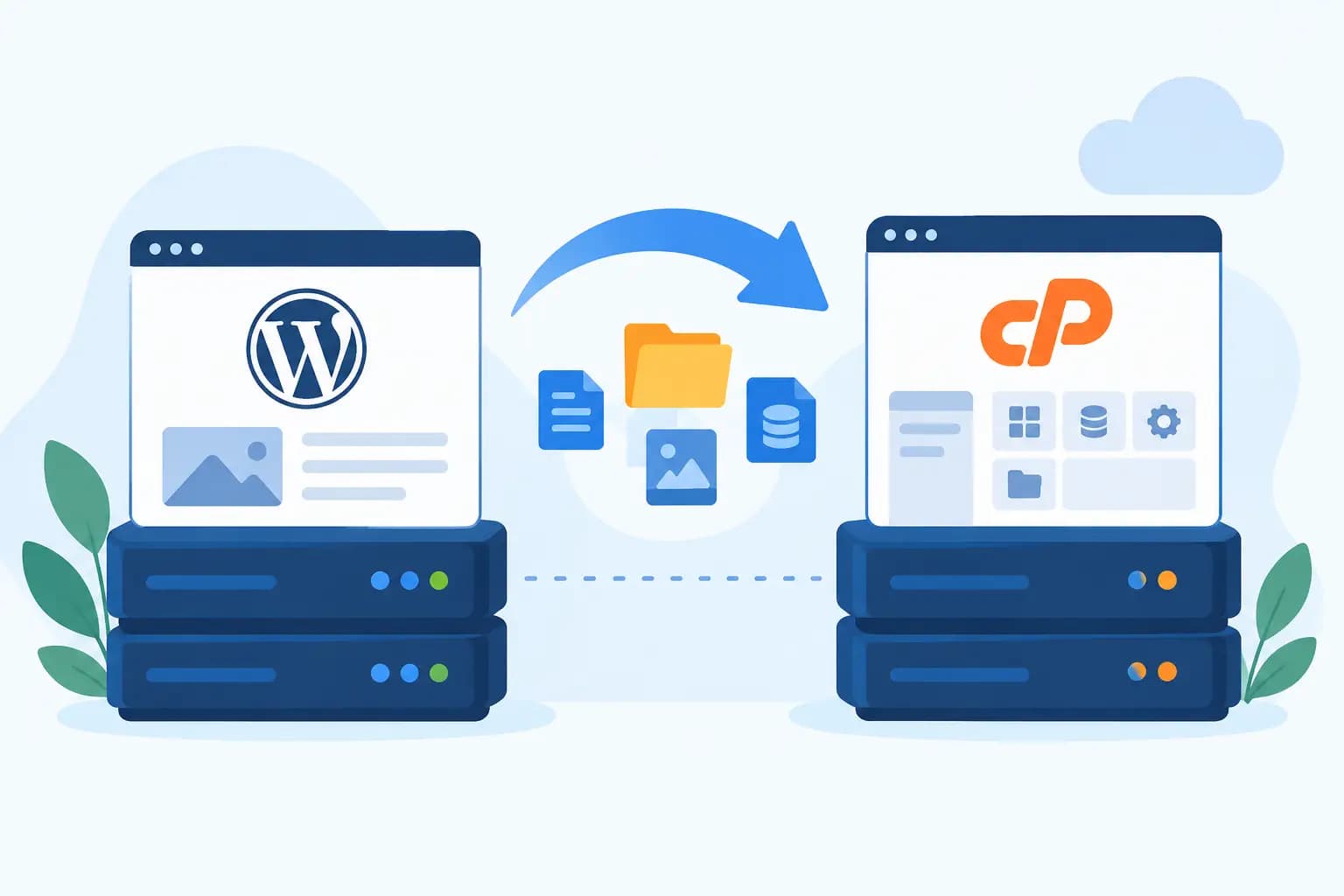
There are two common ways to move a cPanel-based WordPress site: a full cPanel account transfer or a manual WordPress migration. The right option depends on what is moving and how much access you have.
A full account transfer is usually the cleaner choice when you are moving an entire cPanel account to a new provider. It can bring over website files, databases, email accounts, and many account-level settings in one package. However, it typically requires the new host to perform or support the transfer, and it may not be appropriate if you are moving only one website from a larger shared account.
A manual migration is more selective. You copy the WordPress files, export and import the database, create database credentials on the new server, and update the configuration file. It takes more hands-on work, but it gives you control and is often ideal when one site needs to move independently.
For a busy store or service business, consider the timing carefully. A manual migration can create a gap between the database backup and the DNS switch. If customers can submit forms, make purchases, or create accounts during that period, you may need a final database export just before launch or temporary maintenance mode to prevent data from being missed.
Back Up Files and Export the Database
Start with a backup even if your host keeps automatic backups. A migration backup is your own restore point, created immediately before the move.
In the old cPanel account, open File Manager and locate the WordPress installation. For a primary domain, it is commonly inside the public_html directory. Add the WordPress files to a compressed ZIP archive, then download that archive to your computer. Make sure hidden files are included. The .htaccess file is easy to overlook and can contain important permalink, redirect, and security rules.
Then open phpMyAdmin in cPanel and identify the database used by the site. If you are unsure which database is correct, open the wp-config.php file in File Manager and look for the DB_NAME value. In phpMyAdmin, select that database, choose Export, use the Quick export method with SQL format, and download the file.
Before moving on, confirm that the ZIP file and SQL export have downloaded successfully and are not empty. Keep them in a secure location until the new site has been tested and the migration is complete.
Create the New Site Environment
In the new cPanel account, add the domain or create the appropriate domain entry before uploading files. Depending on your hosting setup, this may be the primary domain, an addon domain, or a domain managed through cPanel’s Domains section.
Open MySQL Databases and create a new database, a new database user, and a strong password. Assign the user to the database with All Privileges. Save these details exactly as shown, including any account prefix added by cPanel. A database name may appear as accountname_database, not simply database.
Upload your WordPress ZIP file to the new site’s document root using File Manager. Extract it in the correct folder. A frequent mistake is extracting an archive that creates an extra folder level, leaving the actual WordPress files inside something like public_html/website/public_html. Your destination folder should directly contain items such as wp-admin, wp-content, wp-includes, and wp-config.php.
Open phpMyAdmin on the new account, select the new database, and use Import to upload the SQL file. Large databases may exceed a server’s upload limit. When that happens, your host may be able to assist, or the SQL file may need to be imported through another supported method. Do not repeatedly refresh an import that appears stuck, because partial imports can make troubleshooting harder.
Update wp-config.php and Site URLs
Edit the wp-config.php file in the new WordPress directory. Replace the database name, database username, password, and database host values with the new account details. In most cPanel environments, the database host remains localhost, but use the value provided by your host if it differs.
If the domain name is staying the same, you typically do not need to change WordPress URLs in the database before the DNS switch. Instead, test the site on the new server through a temporary URL, a hosts-file preview, or a staging option provided by your host. The best preview method depends on the server configuration, so ask for the supported approach rather than changing live DNS too early.
If the domain is changing, the migration needs an additional database search-and-replace step. WordPress stores some values as serialized data, which means a basic find-and-replace in a database can corrupt settings, widgets, or page-builder content. Use a WordPress-aware migration tool or an experienced developer for domain changes instead of editing database values blindly.
Test Before Changing DNS
Testing is where a routine move becomes a dependable one. On the new server, check the homepage and several interior pages. Log in to WordPress admin, load the media library, open a contact form, and review key plugins. For e-commerce sites, test the cart, checkout flow, transactional emails, payment gateway settings, and any shipping or tax integrations in a safe manner.
Also check for mixed-content warnings after SSL is installed. If a page loads over HTTPS but some images, scripts, or stylesheets still use HTTP, browsers may display security warnings or prevent parts of the page from loading. Confirm that the correct SSL certificate is active on the new hosting account before the final DNS change.
Pay attention to email. If your domain email is hosted with the old provider, copying website files will not automatically recreate mailboxes on the new server. Create the mailboxes first, verify the correct MX and related DNS records, and plan the switch so that messages are not split between providers. Businesses that rely heavily on email should treat this as a separate migration task, not an afterthought.
Update DNS and Monitor the Cutover
Once the new site is working correctly, update the domain’s DNS records to point to the new hosting account. This is often done by changing the A record, updating nameservers, or following the specific DNS instructions supplied by the new host. Use one method only. Mixing old and new nameservers or leaving conflicting A records can cause inconsistent results.
Propagation may take minutes or longer depending on cached records and DNS settings. During this window, some visitors may reach the old server while others reach the new one. Keep the old hosting account active until you have confirmed that traffic, forms, email, and essential site functions are consistently reaching the new environment.
After the change, clear any WordPress caching plugin, server cache, and browser cache. Then review error logs in cPanel if pages return 500 errors, images are missing, or redirects behave unexpectedly. Most post-migration problems come down to incorrect file paths, database credentials, permissions, DNS records, or cached content.
When to Ask for Migration Help
A do-it-yourself move makes sense for a straightforward brochure site with modest traffic and a simple WordPress setup. It may not be the best use of your time when your site includes an active online store, membership accounts, complex integrations, large mailboxes, or business-critical forms.
Managed migration help can reduce risk because the process is planned around your account structure, testing needs, and launch window. GiddyHost can be a practical fit for businesses that want dependable cPanel hosting and a clearer path to getting their website online without turning a server move into an all-day project.
A careful migration is less about rushing files from one server to another and more about protecting the work your website already does for your business. Build in time to test, keep the old account available until everything is confirmed, and make the final switch only when you can verify the details that matter most.